Construction Management on a Foldable: PlanoTrak on iPhone Duo
A site manager carries one device all day: in the van, on the scaffold, in the client meeting. Plans, task lists and the site diary all have to fit on it. On a normal phone that means a lot of zooming, scrolling and tapping back and forth. iPhone Duo unfolds like a book into a small tablet, and PlanoTrak now uses that space properly instead of simply stretching the phone layout.
Lists on one page, details on the other
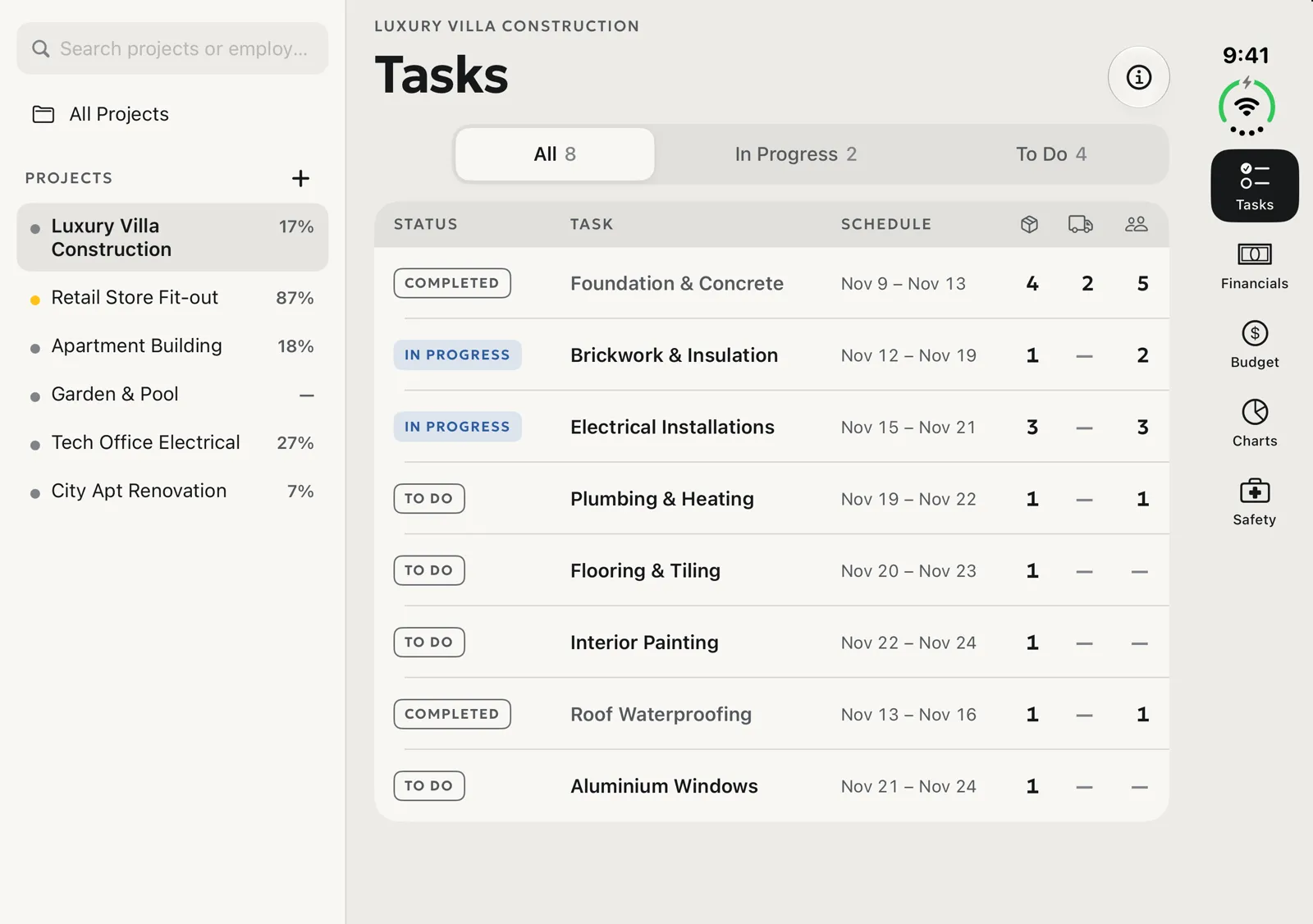
When you open iPhone Duo, PlanoTrak works like a book. Your projects sit on the left page, and the selected project's tasks fill the right page as a table, with status, schedule, materials, machinery and crew in one row. Open a task and it gets the whole spread, with its tabs (info, resources, workers, site diary, plans) in a column along the side. Lists such as the punch list, workers and materials follow the same rule: the list on one page, the selected item on the other.
Plans and BIM models at full size
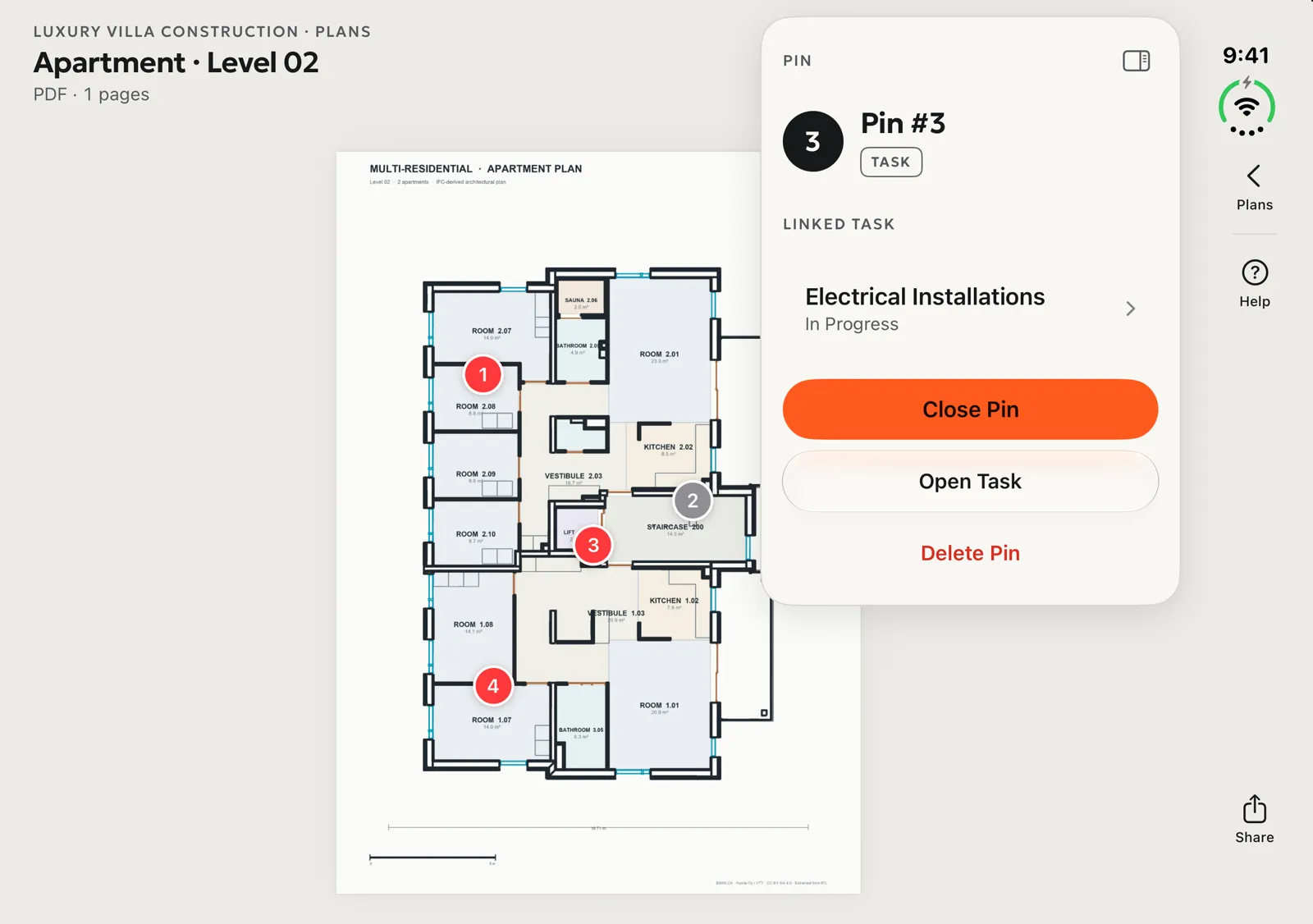
Drawings are where a bigger screen matters most. On iPhone Duo, a PDF or DWG plan fills the whole screen and the pin details open in a panel beside it, so you can read the drawing and the issue at the same time. The same goes for IFC/BIM models: the 3D model takes the screen, with storeys, categories, measurements and sections in a side column.
Drag a photo onto the plan to log a defect
This one works everywhere, not only on iPhone Duo. Drag a photo from Photos or Files onto a PDF or DWG plan, and drop it where the problem is. PlanoTrak places a numbered pin on that spot and opens the punch list form with the photo and the location already filled in. Save, and the defect is on the plan and in the task's punch list. Cancel, and nothing is stored.
On iPhone Duo and iPad, Photos and PlanoTrak sit side by side, which makes this a two-second job. It also works on iPhone, Mac, the web app and Android. If you are new to punch lists, our guide What is a punch list? explains how they work.
The site diary at a glance
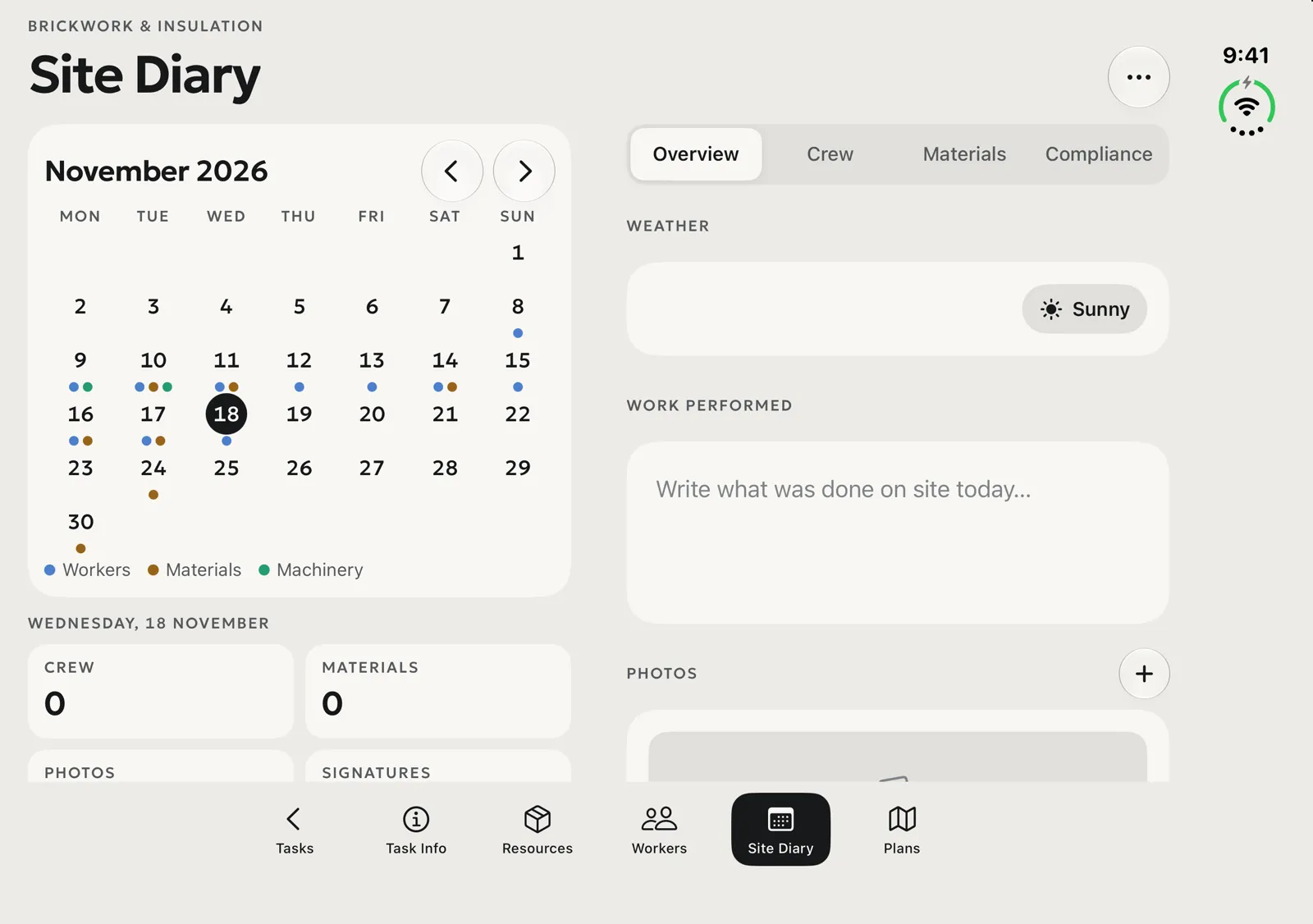
The daily report is easier to keep when you can see the whole month. On iPhone Duo the calendar sits beside the selected day, with dots for the days that have crew, materials or machinery logged. Pick a day and its crew, materials, weather, work performed and photos are right next to it.
Budget in two columns
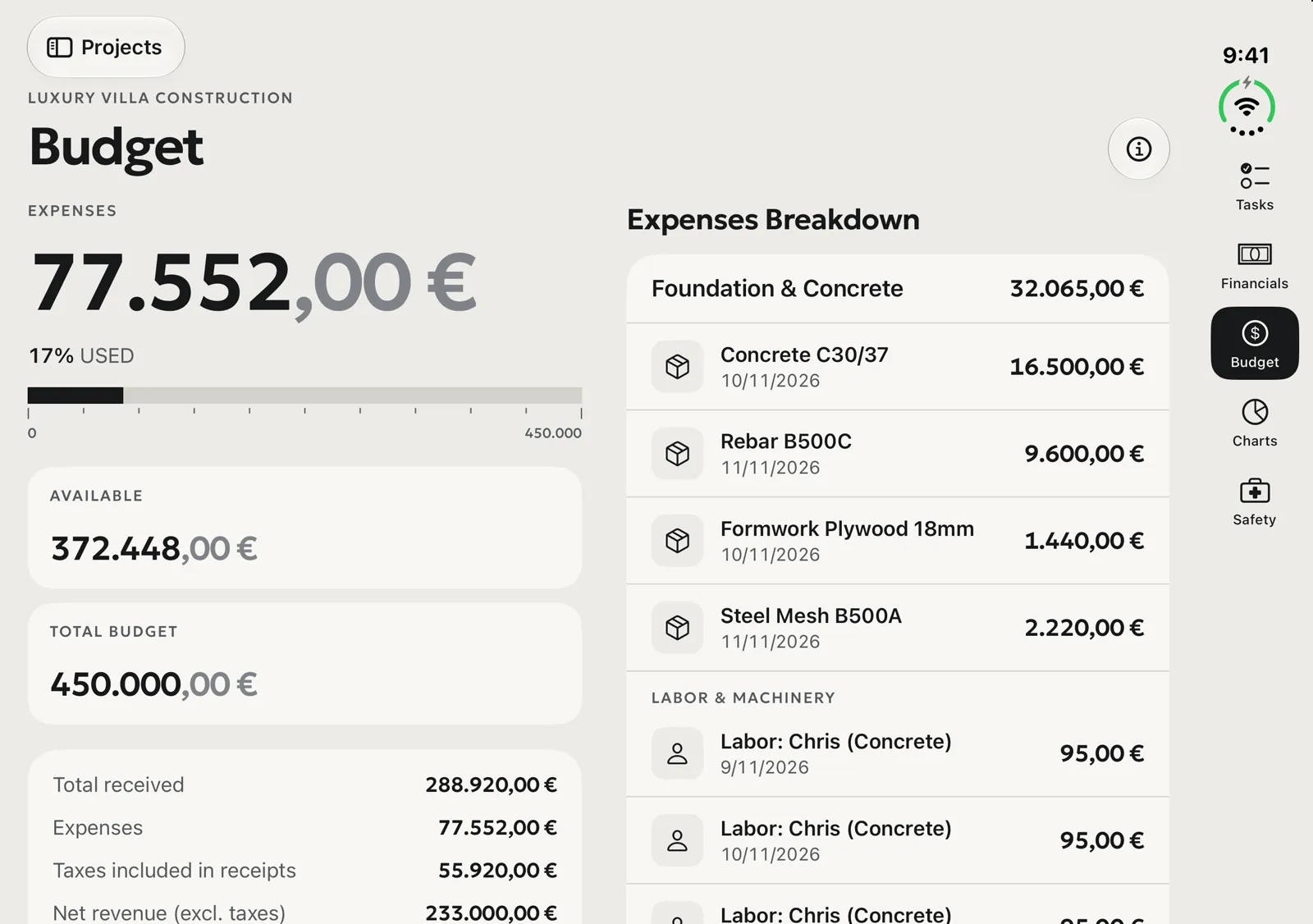
Money is easier to read side by side too. The budget shows expenses, what is left and cash flow on one page, and the full expense breakdown by task on the other. Analytics follow the same two-column layout.
Fold it, and keep working
Folding the phone should not lose your place. If you close iPhone Duo with a task open, PlanoTrak keeps that task and the tab you were on; open it again and an open plan comes back too. The outer screen works like any iPhone, so you can check something quickly with the phone closed and open it when you need the detail.
Plans, DWG and BIM models and the punch list are part of the Premium and Enterprise plans. See the pricing page for what each plan includes.
The Bottom Line
A foldable phone is only useful on site if the app makes use of the screen. On iPhone Duo, PlanoTrak puts lists next to details, plans and models at full size, the diary month next to the day, and lets you drop a photo straight onto the plan. It is the same app and the same data as on your iPhone, iPad, Mac, Android and the web, just with room to breathe.
